
Prompts
Write a prompt once. Use it anywhere.
-
Write it once
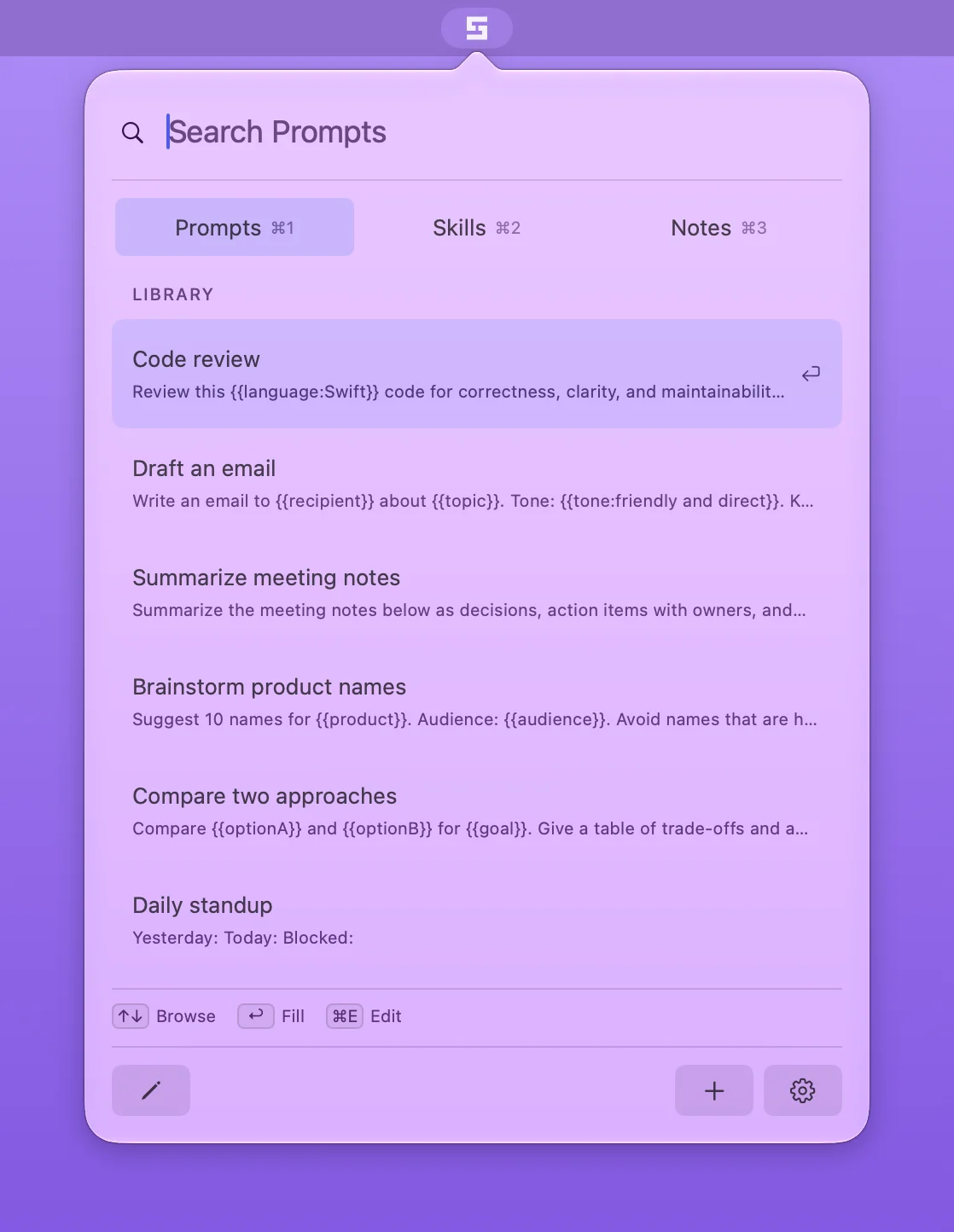
Each prompt is a Markdown file. The filename is the title. Put blanks where the text changes, using
{{name}}, or{{name:default}}for a default value.Review this {{language:Swift}} code for {{concern}}. -
Open it from anywhere
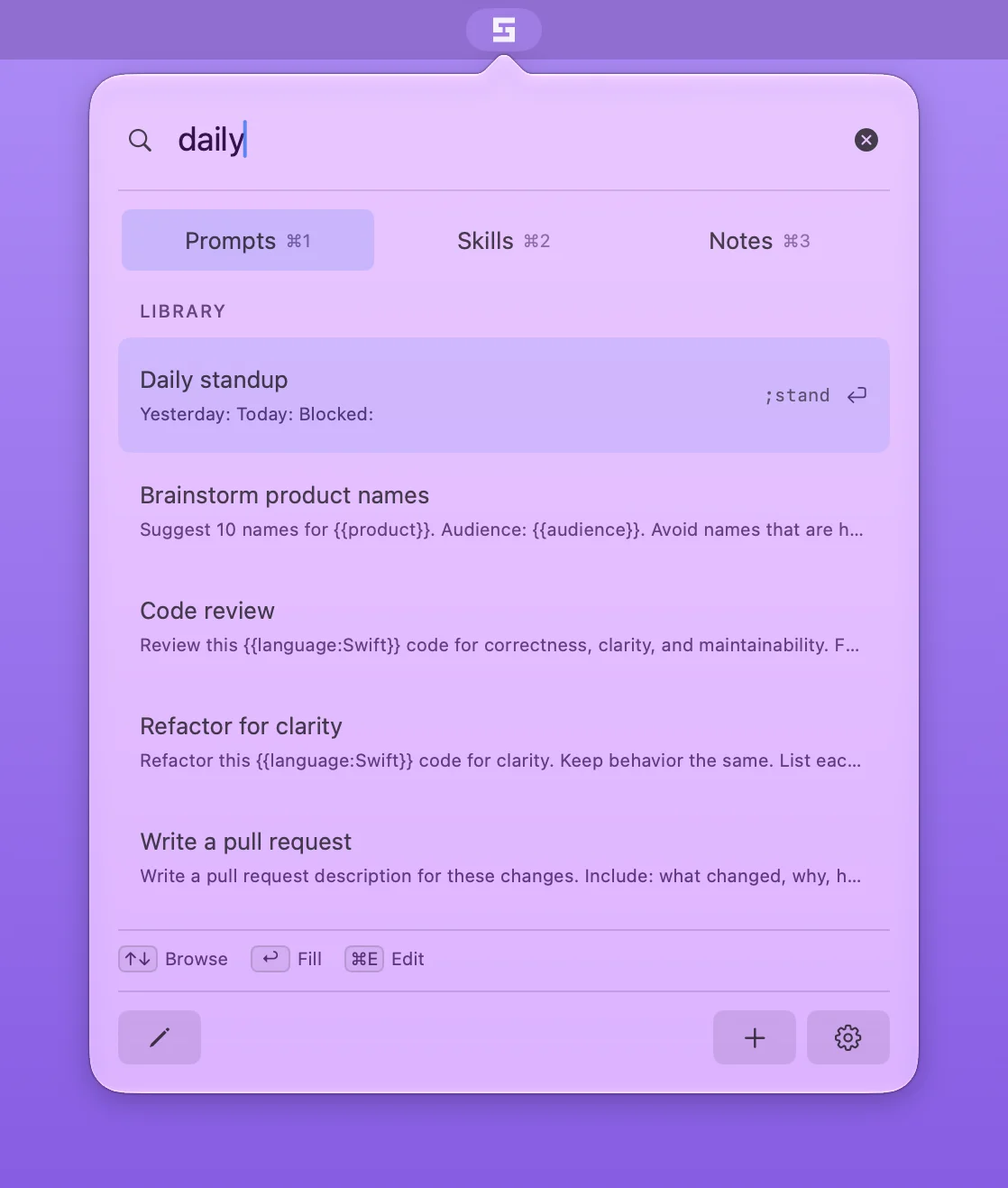
Press your hotkey in any app. Type a few letters. The search matches the title and the text of each prompt.
-
Fill in the blanks
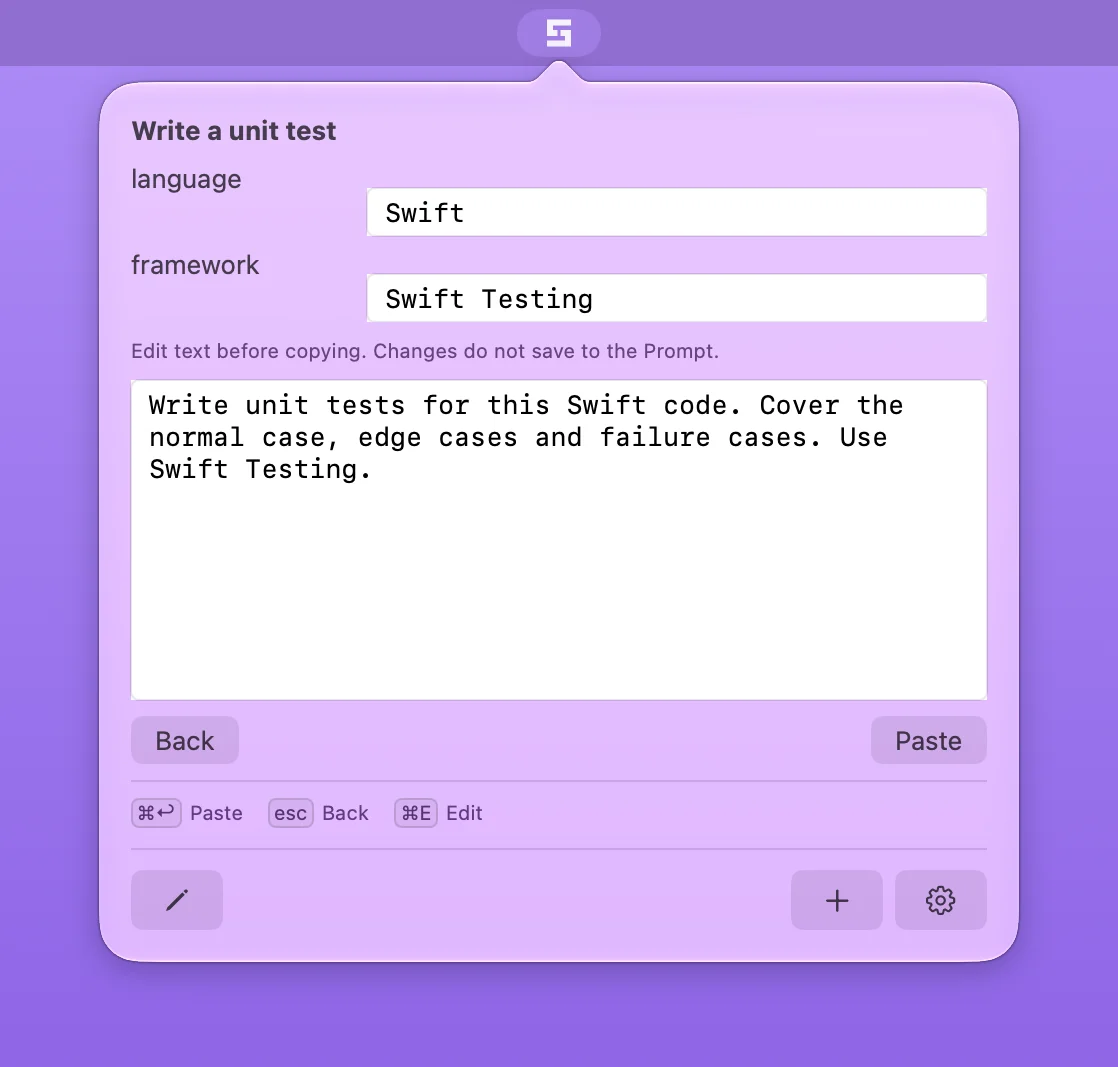
Press Return. Type a value for each blank. The preview shows the final text, and you can edit it for a one-off change. Your edits never change the prompt file.
-
Paste
Press Command-Return. Stencilbar pastes into the window you were using. Auto-paste needs Accessibility permission. If Stencilbar cannot find that window, it keeps the text on your clipboard. To copy only, turn off auto-paste in Settings.
Prompts
Text Expansion
Skip the search. Give a prompt an abbreviation, like ;review, then type it in any app. Stencilbar replaces it as soon as you type the last character.
;review → Review this Swift code for…- No blanks: the prompt is pasted in place, and your previous clipboard contents are restored.
- Blanks: Stencilbar opens Fill and Preview, so you can fill them in first.
Text expansion starts off. Turn it on in Settings and grant Accessibility permission. While it is on, Stencilbar reads keys typed in other apps. It keeps only the last few characters in memory, and never stores or sends them. It skips password fields and text composition. Detection is best effort, so some input methods may not be recognized.
Skills
One home for your agent skills
A skill is a folder with a SKILL.md file. Coding agents like Claude Code read skills from their skills folders. Stencilbar keeps your skills in ~/.config/stencilbar/skills.
-
Add skills
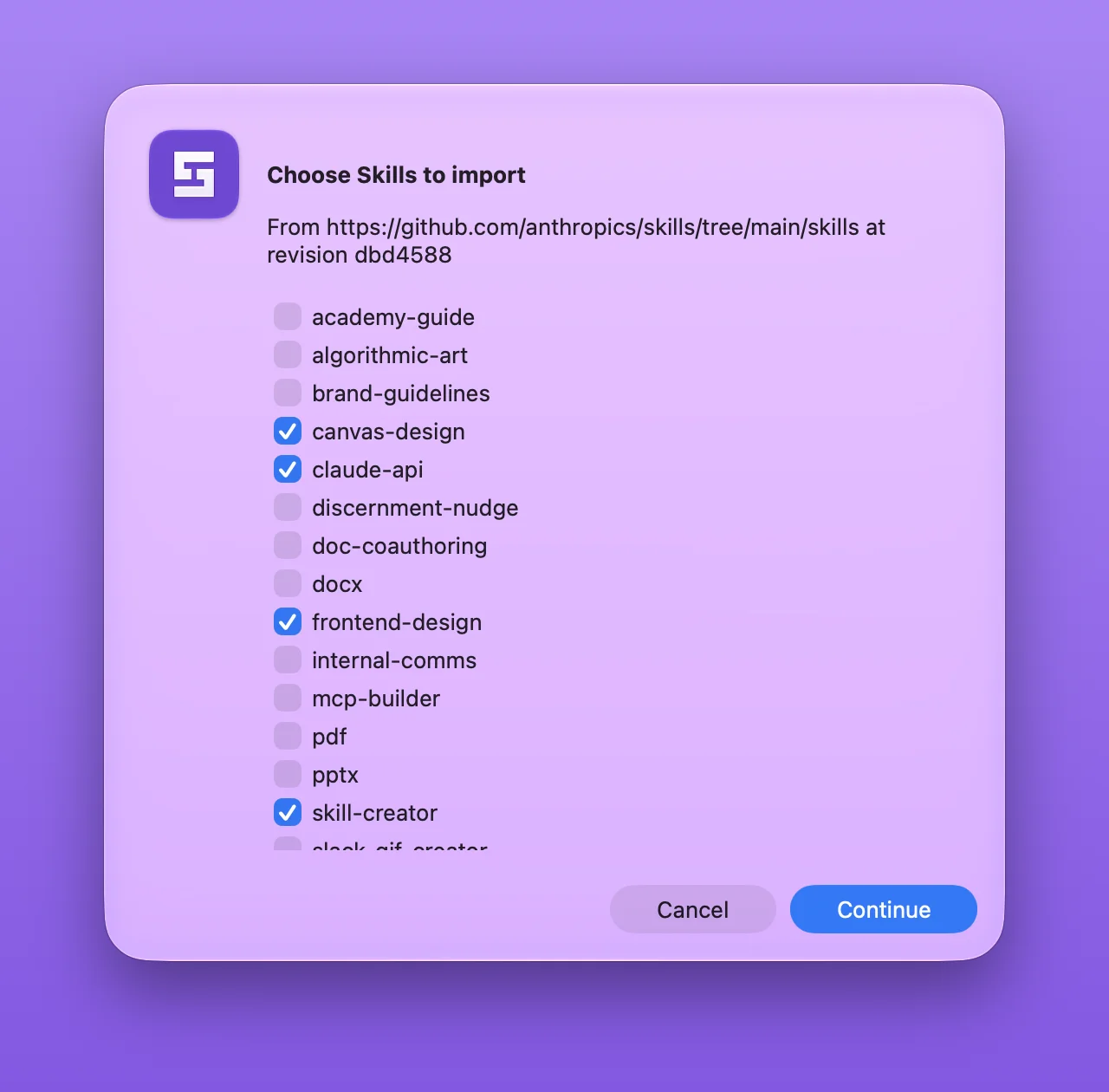
Import a skill folder, a folder of skills, or a public GitHub repository. Pick the skills you want. Stencilbar copies them, never runs anything in the files, and never updates them on its own.
-
Switch them on
One switch per skill. Stencilbar links the skill into
~/.agents/skillsand~/.claude/skills, or the folders you choose.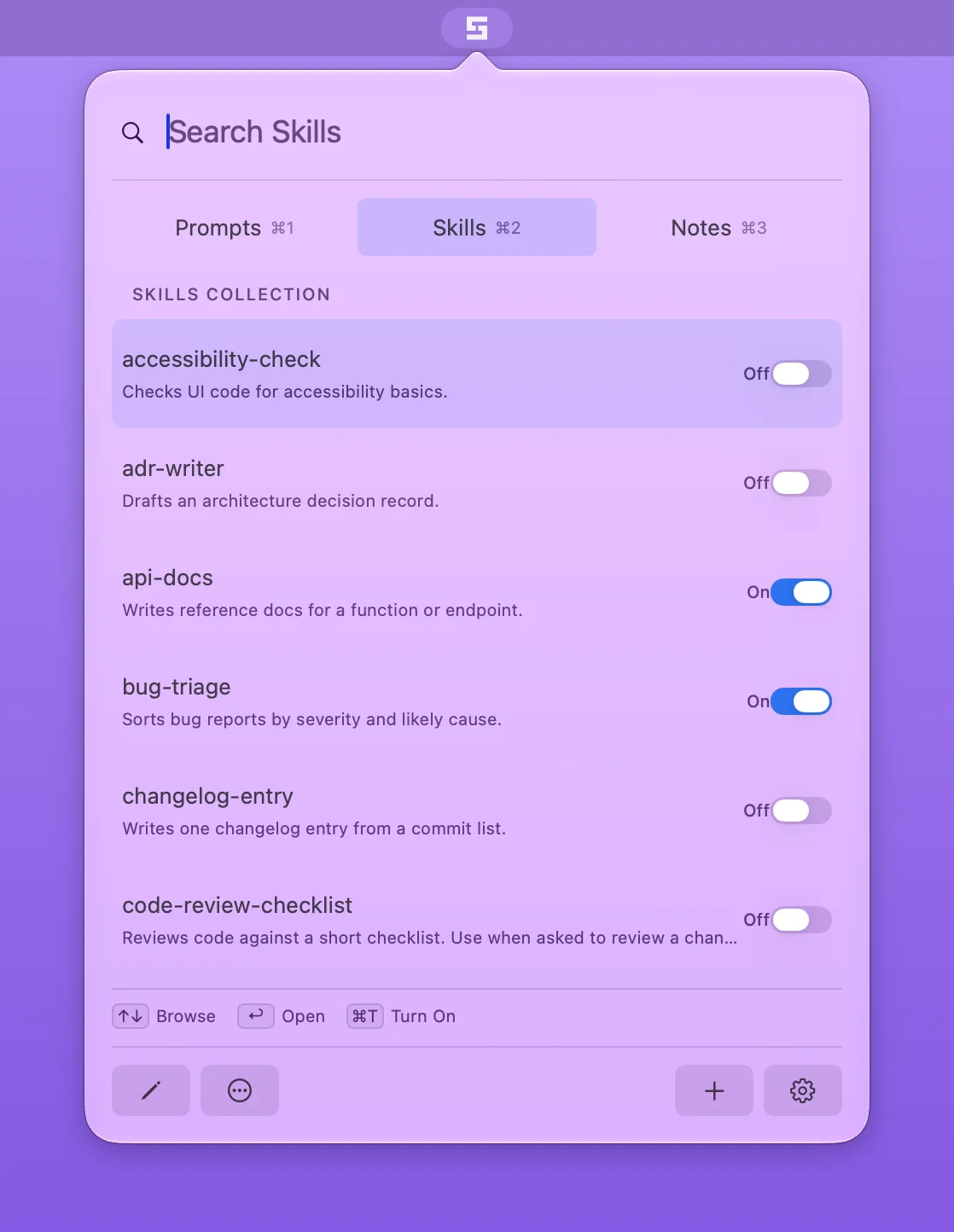
-
Switch them off
Stencilbar removes only Stencilbar's own link. Before it replaces or deletes a skill, it asks you, then moves the old copy to a backups folder.
Changing skills requires a running trial or an activated license. After the trial ends, you can still browse and read your skills, and the links already in place stay.
Notes
Reference text, a hotkey away
-
Find a note
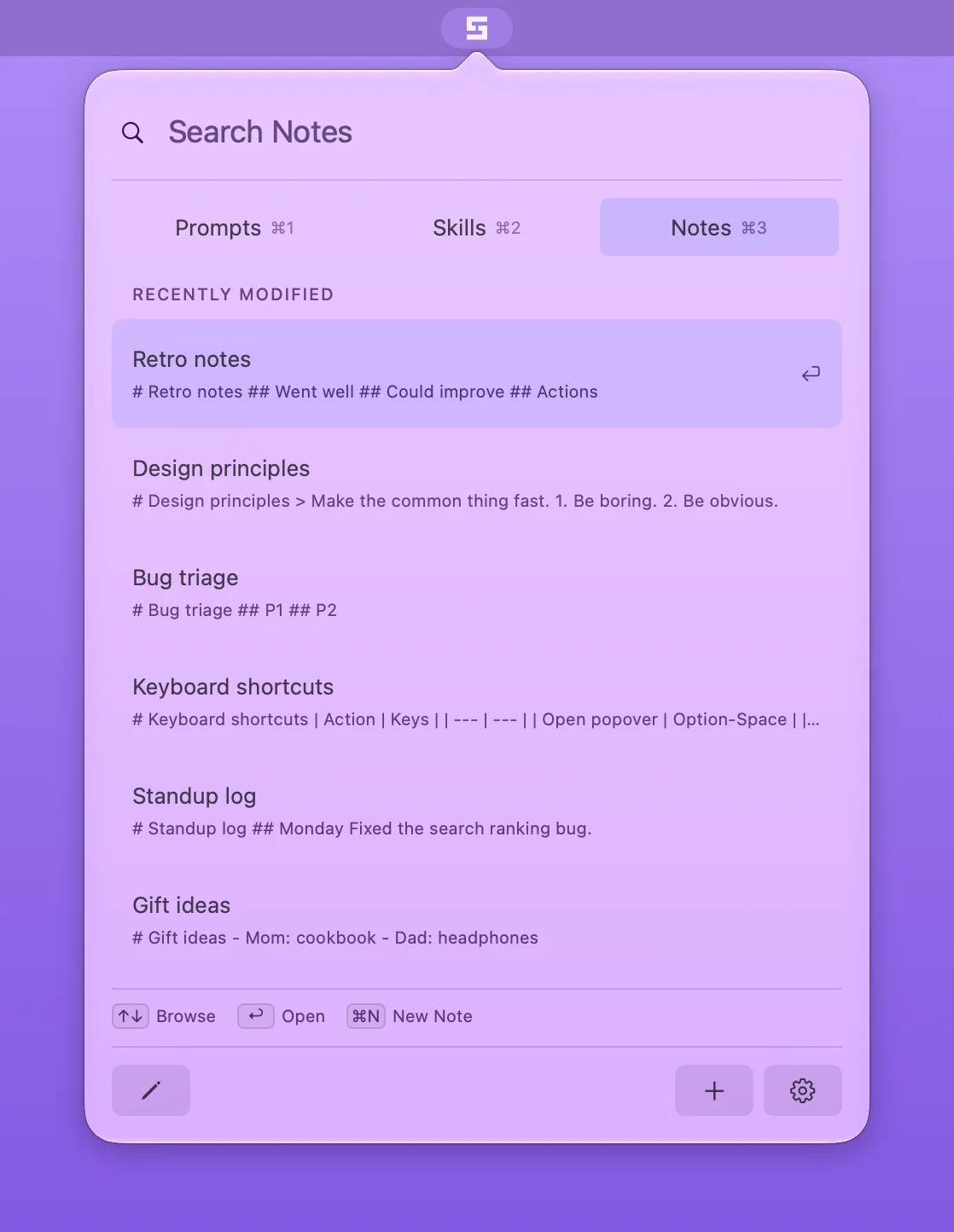
In the popover, press Command-3 to search across titles and bodies, or browse your most recent notes.
-
Keep it open
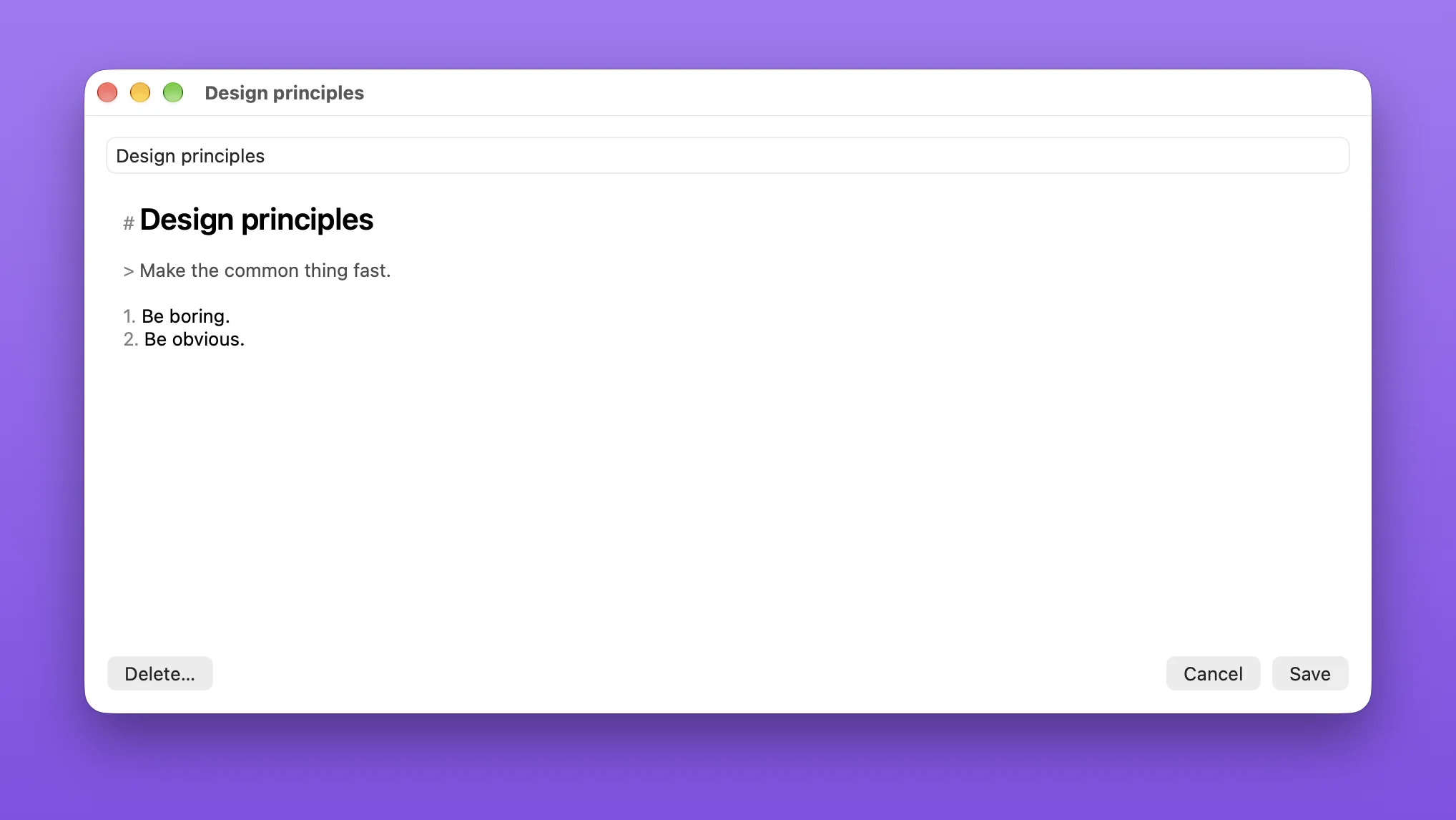
Each note opens in its own window and stays open while you work.
-
Save when you are ready
Nothing changes until you choose Save. Stencilbar protects unsaved work and asks before it overwrites changes from another app.
Notes are plain Markdown files in ~/.config/stencilbar/notes. You can choose another folder in Settings. It is separate from your prompt library.
Help
- How do I install it?
- Download the free trial and open the zip file. Move Stencilbar to your Applications folder and open it. Look for the icon in your menu bar. Stencilbar has no Dock icon.
- Where are my files?
- Prompts, skills, and notes are plain files on your Mac. To sync your prompts, choose a library folder in iCloud Drive or Dropbox in Settings.
- What happens after the trial?
- The trial lasts seven days and needs no account. After it ends, you need a license to fill and copy prompts, to change skills, or to start editing a note. You can still search and read your notes and edit your prompt files. To activate, open Settings, paste your license key under License, and choose Activate. A license covers version 1.
- I lost my license key.
- Sign in at My Orders with the email address you used at checkout. Your key is shown with your order.
- How do I contact you?
- Email support@stencilbar.com. Release notes are on the GitHub releases page.